Appearance
Payroll
NKL-HR HRMS Software offers a comprehensive and efficient payroll module within its suite of features. The payroll software module in NKL-HR enables businesses to effectively manage employee allowances, deductions, taxes, and the generation of accurate payslips. With NKL-HR’s payroll software, you can streamline your payroll processes and ensure timely and accurate salary calculations for your employees.
Dashboard Overview
The Payroll Dashboard within the HRMS provides HR professionals with a comprehensive overview of payroll activities. The dashboard displays key metrics related to payslip processing, enabling users to monitor and manage payroll status effectively.
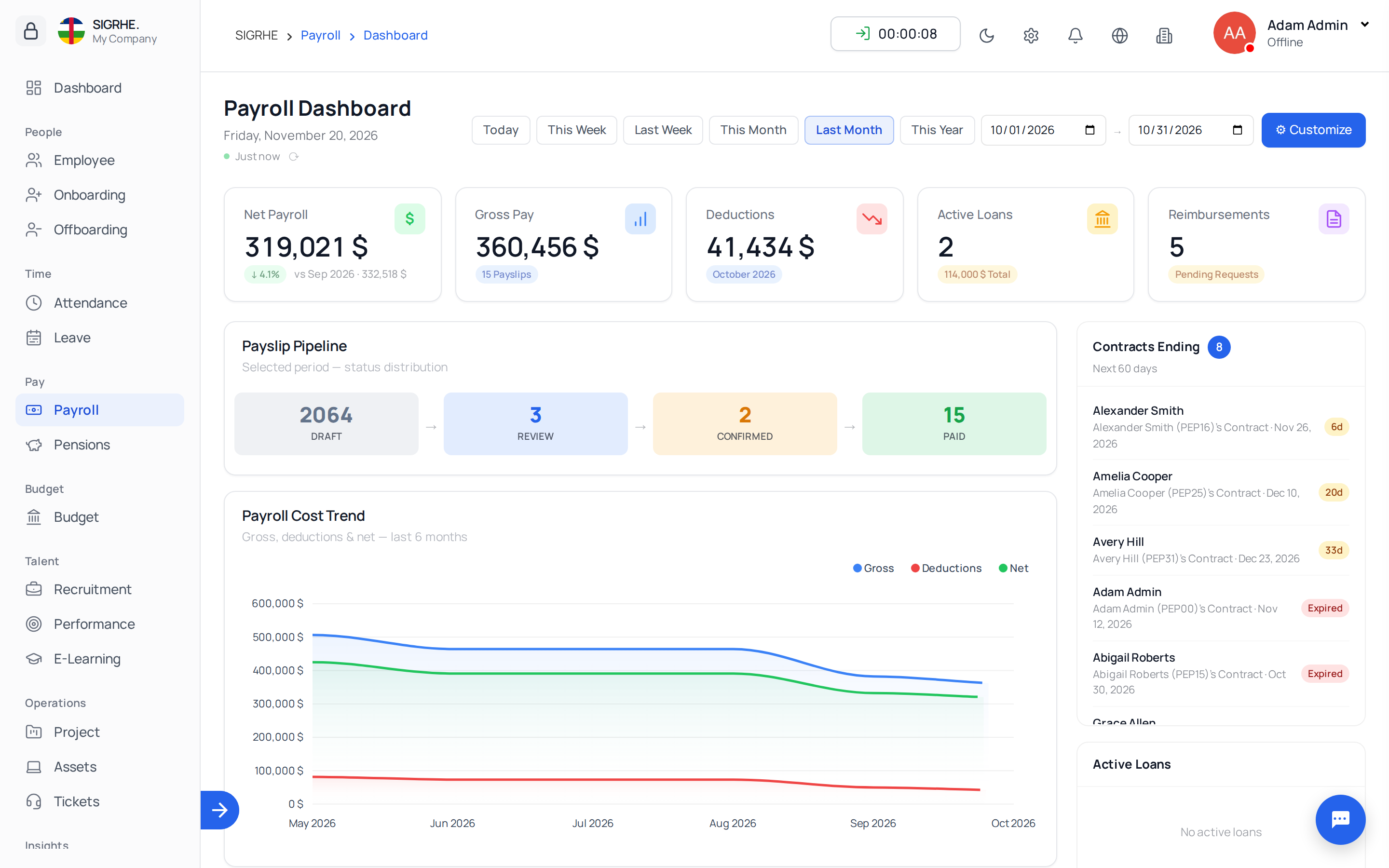
Accessing the Payroll Dashboard
- Navigate to Payroll:
- On the left side menu, click on Payroll.
- Select Dashboard from the dropdown list.
- The Payroll Dashboard displays a summary of payroll activities in a graphical and tabular format.
Key Components of the Payroll Dashboard
1. Payroll Status Overview
- Paid: Displays the number of payslips marked as paid for the selected month and year.
- Confirmed: Shows the number of confirmed payslips.
- Review Ongoing: Indicates the number of payslips currently under review.
- Draft: Displays the number of payslips saved as drafts.
- Month and Year Selection:
- Use the dropdown menu to select a specific month and year to filter the payroll data displayed on the dashboard.
2. Employee Payslips Graph
- Graph Display:
- A bar graph representing the status of employee payslips (Draft, Review Ongoing, Confirmed, Paid) is displayed.
- The Y-axis represents the amount, and the X-axis employee.
- Color coding helps distinguish between different statuses:
- Red: Draft
- Yellow: Review Ongoing
- Blue: Confirmed
- Green: Paid
3. Payslip Summary
- Total Payslips Generated:
- Indicates the total number of payslips generated for the selected period.
- Total Amount:
- Displays the total amount processed in payslips.
- Department Total Amount:
- Breaks down the total amount by department, listing individual department totals.
4. Export Option
- Export Button:
- The Export button allows users to download the payroll data in various formats (e.g., CSV, PDF).
- Located at the top right of the Payroll Status Overview section.
5. Employer Contributions
- Employee Selection:
- A dropdown menu to select an employee to view their specific employer contributions.
- Contribution Summary:
- Displays a breakdown of contributions made by the employer for the selected employee.
Filtering and Exporting Data
- Filtering:
- Use the filtering options to narrow down payroll data by specific criteria such as month, year, or employee.
- Exporting Data:
- Click on the Export button to save payroll data in your preferred format. This allows for easy reporting and record-keeping.