Appearance
Onboarding
The Onboarding module in NKL-HR manages the transition of hired candidates into active employees through structured stage pipelines, task checklists, and a digital self-service onboarding portal.
1. Prerequisites & Setup Order
Before starting candidate onboarding:
- Ensure candidate records are in place (hired candidates eligible for onboarding).
- Verify mail server connectivity under
Settings → Email Servers, as onboarding portal invitations are delivered via email. - Prepare offer letter and welcoming templates under
Settings → Email Templatesif attachments or offer letters will be distributed during onboarding initiation.
2. Process Workflow & Menu Overview
- Candidate Selection: Hired candidates appear in the Onboarding module.
- Onboarding Initiation: HR sets joining dates, offer letter statuses, and either dispatches the digital portal link or initiates internal onboarding directly.
- Stage Progression: Candidates enter the first onboarding stage. Stage and task managers execute onboarding checklists.
- Employee Conversion: The new hire completes the self-service portal, creating their official employee profile and login account (or HR converts them directly).
| Menu | Purpose |
|---|---|
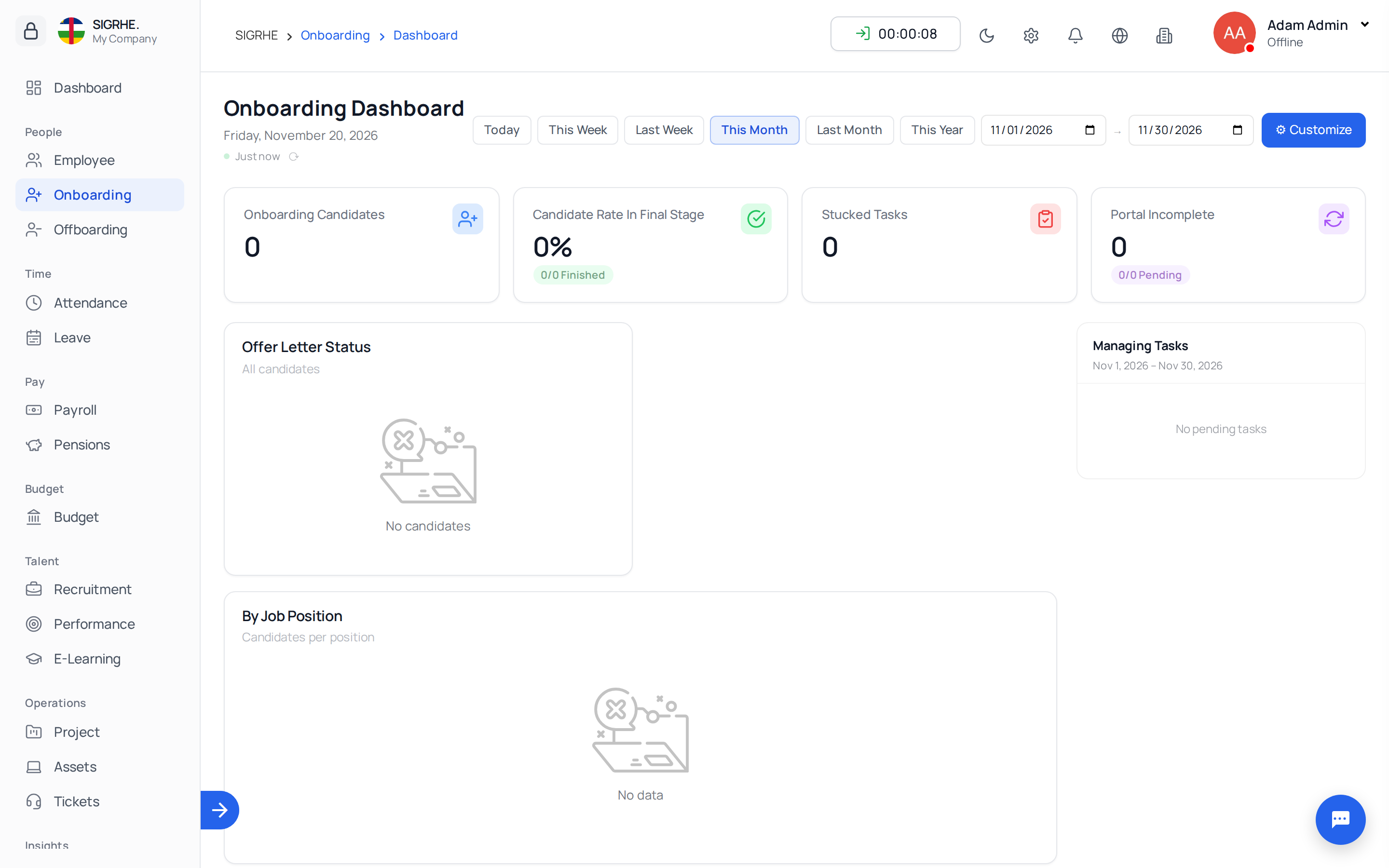
| Dashboard | Candidate counts per stage and task progress. Click any status counter to open Onboarding Tasks filtered to bottlenecks or stuck tasks. |
| Candidates | Hired candidate directory: manage joining dates, track offer letter states, initiate onboarding, and dispatch portal invitations. |
| Onboarding Tasks | Pipeline interface showing candidate progression through stages, with granular task completion checklists. |
3. Managing Hired Candidates
Navigation: Onboarding → Candidates
The candidate directory allows direct inline editing of key onboarding attributes:
- Date of Joining: Projected start date.
- Probation Ends: End of probation period (must not precede the joining date).
- Offer Letter Status: Track stages: Not Sent, Sent, Accepted, Rejected, or Joined.
Filtering & Quick Segmentation
- Visual filter indicators at the top allow quick segmentation:
- Joining Set vs. Joining Not-Set
- Portal Send vs. Portal Not-Sent
- Bulk Update: Select multiple candidates to set joining dates, probation ends, or job positions simultaneously.
- Row Actions: Access Send Portal / Start Onboarding, Send Mail, Edit, Add To Rejected Candidates / Undo Rejected Candidate, and Delete.
- Candidates already placed in an active pipeline display an Added to Onboarding badge.
4. Starting Onboarding & Dispatching the Portal
Navigation: Onboarding → Candidates → Send Portal / Start Onboarding
- Select Send Portal / Start Onboarding on an individual candidate row or use
Actions → Send Portalfor bulk processing. - Specify or verify the Joining Date and Probation End Date.
- Optionally attach documents: select system email templates (which are dynamically rendered as individualized candidate PDFs) or upload external onboarding packages.
- Dispatch invitation.
Each candidate receives an email invitation containing a unique, secure, one-time link (Subject: "Congratulations on your selection!"). The candidate is automatically enrolled into the first onboarding stage.
Internal Onboarding Without Email: To place a candidate into onboarding stages without dispatching an email portal link, select Start Onboarding.
5. Candidate Self-Service Portal
The one-time portal link enables new hires to configure their employee profile before their first working day. No pre-existing login credentials are required.
| Step | Candidate Action | System Result |
|---|---|---|
| 1. Account | Enters and confirms a secure private password. | Login account prepared (work email serves as username). |
| 2. Profile Picture | Uploads a professional photograph. | Profile picture stored. |
| 3. Personal Details | Completes and verifies personal, address, and emergency contact details. | Employee profile created; candidate is officially authenticated. |
| 4. Bank Details | Enters banking details, routing codes, and branch information. | Onboarding portal completed; welcome page presented. |
Upon completing Step 3, the employee record is generated and populated with pre-assigned work information (department, job position, company, joining date, and email). The one-time portal link is deactivated immediately upon completion.
6. Configuring Stages & Task Checklists
Navigation: Onboarding → Onboarding Tasks
Each recruitment pipeline features independent onboarding stages. An Initial stage is created by default.
Adding & Managing Stages
- Open the recruitment actions menu and select Add Stage.
- Specify the Stage Title (e.g., Document Collection, IT Asset Provisioning, Department Induction) and designate Stage Managers.
- Check Final Stage if reaching this stage marks the formal completion of the candidate's onboarding.
- Use Manage Stage Order to reorder workflow progression.
Creating Onboarding Tasks
- Within any stage, click + Task.
- Enter the Task Title and designate specific Task Managers responsible for its execution.
- Check Required if the task must be completed before the candidate can be moved to the subsequent onboarding stage.
7. Tracking Tasks & Advancing Candidates
Navigation: Onboarding → Onboarding Tasks
- Toggle between List View and Card / Kanban View.
- Update task states for each candidate directly on the grid: Todo, Scheduled, Ongoing, Stuck, or Done.
- Advancing Stages: In list view, update the Stage dropdown; in card view, drag the candidate card into the next stage column.
- Bulk Progression: Select candidates within a stage to update stages and task statuses in bulk.
- Task Enforcement: If a candidate has incomplete Required tasks in their current stage, the system blocks the transition and lists the outstanding required tasks.
8. Direct Conversion & Deletion Rules
Direct Conversion
Administrators can convert an active candidate directly into an employee record without requiring the candidate to complete the digital portal. This is used when HR enters personal and banking information on the employee's behalf.
Deletion Rules & System Integrity
To prevent data inconsistency, deletion restrictions are strictly enforced:
- A candidate cannot be deleted while assigned to an active onboarding stage, associated with onboarding tasks, or after a portal link has been dispatched.
- An onboarding stage cannot be deleted while it contains candidates.
- An onboarding task cannot be deleted while assigned to candidates.