Appearance
Shift Requests & Reallocation
Shift Requests enable employees to request temporary or permanent adjustments to their assigned working shifts, while Shift Reallocation allows colleagues to swap shifts for coverage.
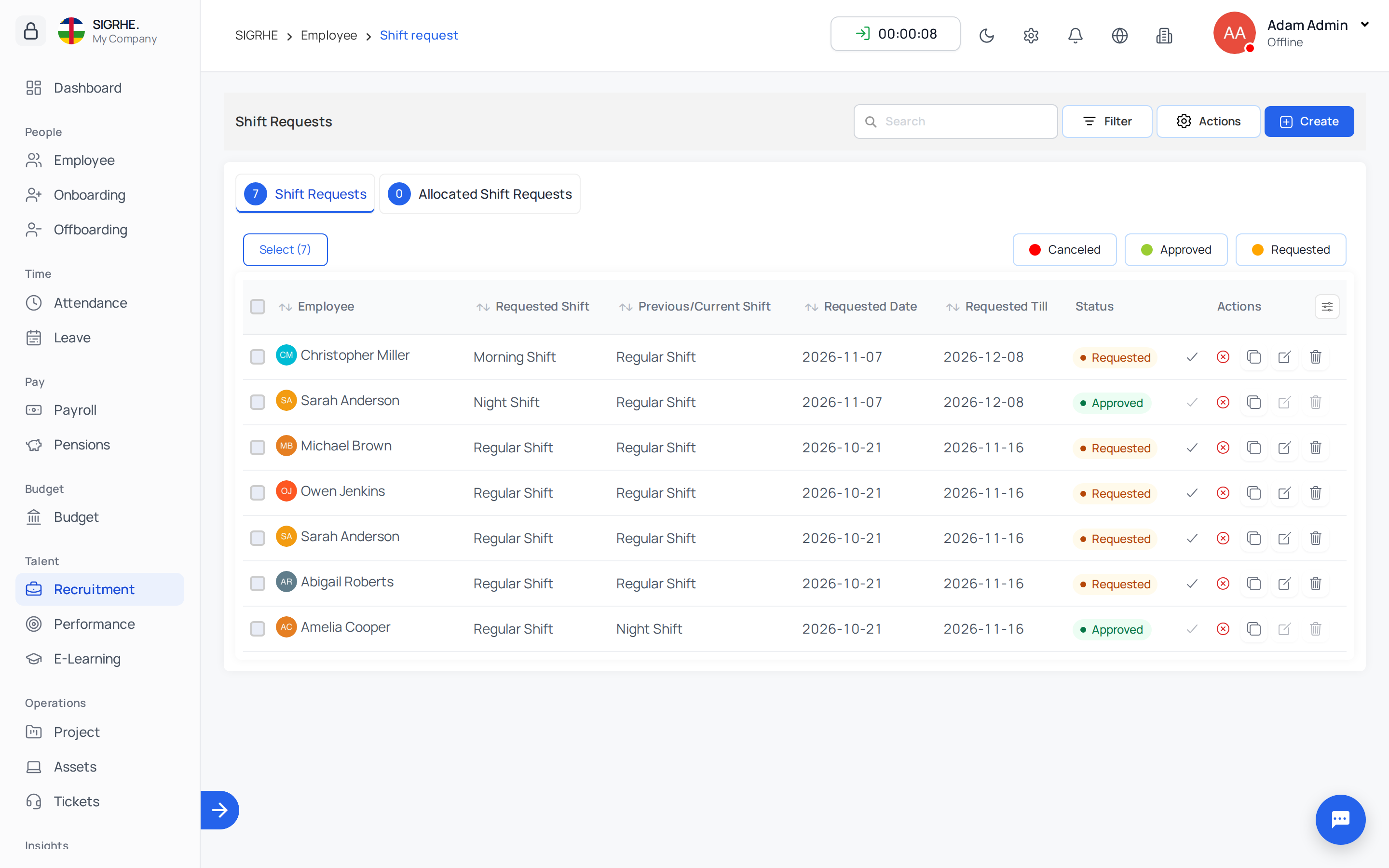
1. Overview & Permissions
Navigation: Employee → Requests → Shift Requests
Employees can view their own requests and submit new applications, while reporting managers and administrators can review, approve, or reject submissions across their teams.
2. Submitting a Shift Request
Click + Create to submit a request:
- Employee: Selected employee (dropdown visible to administrators; regular employees default to their own record).
- Requesting Shift: The desired shift schedule (e.g., Morning, Evening, Night).
- Requested Date: The start date for the proposed shift change.
- Requested Till: The concluding date for temporary shift changes.
- Permanent Request: Toggle switch indicating whether the change is permanent. When enabled, the end date is omitted, permanently updating the employee's work schedule upon approval.
- Description: Justification or context for the shift adjustment.
3. Shift Reallocation & Shift Inbox
When an employee needs a colleague to cover their shift:
- Shift Reallocation: Initiated via the employee profile under
Work Type & Shift → Reallocate Shift. The employee specifies the target shift, the date range, and the colleague (Reallocate Employee) to swap with. - Colleague Availability: The request appears in the designated colleague's Shift Inbox. The colleague can mark their availability as Available or Not Available.
- Managerial Approval: Once the colleague responds, the reporting manager or administrator reviews the request. Approving automatically swaps the assigned shifts between the two employees for the specified duration.