Appearance
E-Learning Management
The E-Learning module in NKL-HR allows organizations and ministries to build structured training curricula, deliver multimedia course content, administer quizzes and assessments, track learner progress, and issue verifiable digital certificates.
1. Prerequisites & Setup Order
- Ministry Scoping: Courses, categories, certificate templates, assignments, and enrolments are scoped to the active ministry or company. Confirm the correct entity is selected in the company switcher before authoring content.
- Course Categories: Define category classifications under
Settings → E-Learning → Course Categoriesto organize courses in the public catalog. - Certificate Templates: Establish default certificate templates under
Settings → E-Learning → Certificate Templatesif custom branding is preferred over the default template.
2. Menu Overview
| Menu | Purpose |
|---|---|
| My Learning | Individual learner dashboard showing personal course enrolments, active progress, and pending deadlines. |
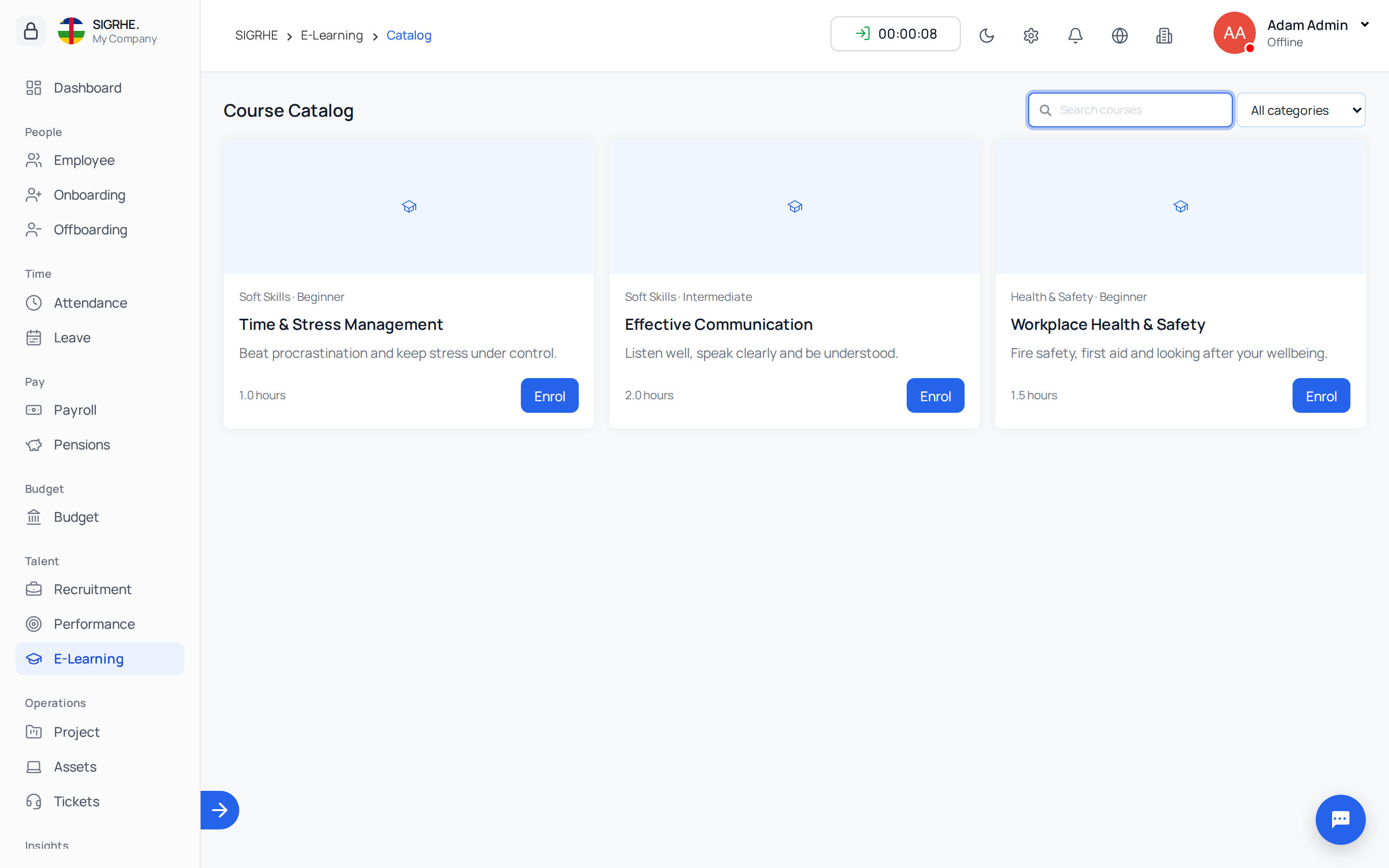
| Course Catalog | Public directory of published courses offering self-enrolment for authorized personnel. |
| My Certificates | Personal archive of earned, downloadable, and verifiable course completion certificates. |
| Courses | Administrative authoring interface to create, structure, edit, and publish courses. |
| Assignments | Curriculum distribution tool to assign mandatory courses to employees, departments, or job positions. |
| Enrollments | Central monitoring console tracking learner completion rates, statuses, and overdue progress. |
3. Course Structure & Architecture
A course is structured hierarchically into Sections, with each section containing an ordered sequence of Lessons. Lessons can be designated as Required or Optional.
Supported Lesson Types
- Video: Embed streaming content directly by providing YouTube or Vimeo URLs or embed codes.
- File: Upload documents and media (PDFs, audio, video, images) up to 50 MB. Executable binaries and scripts (
.html,.js,.exe,.svg) are rejected for security. - Text: Rich-text content formatted directly within the native editor.
- External Link: Interactive button redirecting learners to external training platforms or documentation.
- Quiz: Graded interactive assessment that learners must pass to achieve lesson completion.
Completion Logic: A learner earns course completion when every Required lesson has been completed. Optional lessons do not impede completion. If a course contains no required lessons, every lesson must be completed.
4. Creating a Course
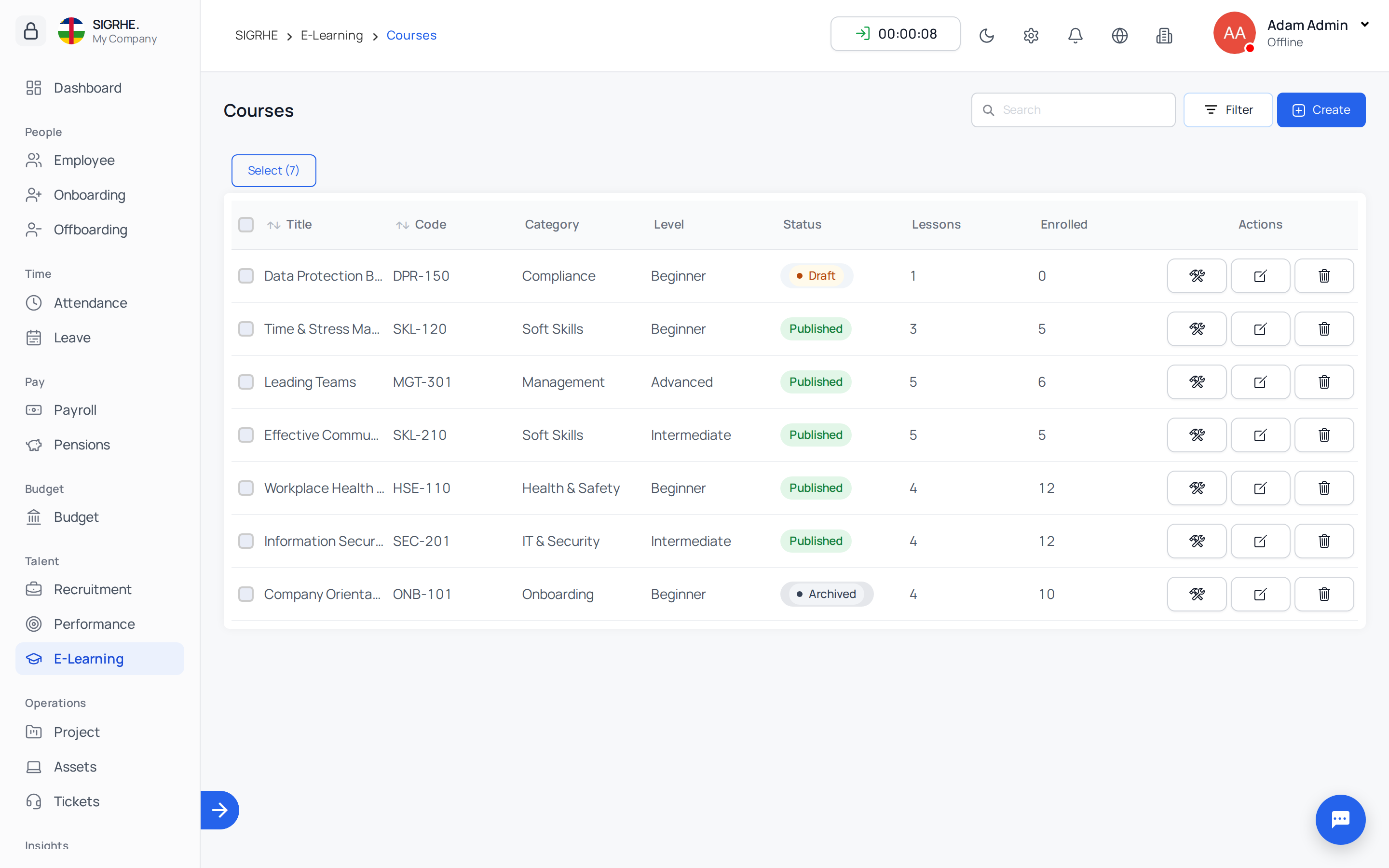
Navigation: E-Learning → Courses → + Create
- Select the target ministry or company in the top switcher.
- Complete course metadata:
| Field | Description |
|---|---|
| Title & Code | Unique course title and code identifier within the ministry (e.g., SEC-101, ONB-HR-01). |
| Category & Level | Assign to a category; set difficulty level (Beginner, Intermediate, or Advanced). |
| Duration (hours) | Expected time commitment displayed on course cards and printed on certificates. |
| Status | Lifecycle state: Draft (unpublished/hidden), Published (active for learners), or Archived. |
| Description & Thumbnail | Short summaries and visual banner (PNG, JPG, WEBP up to 5 MB). |
| Allow Self Enrolment | Makes the course visible in the public Course Catalog for voluntary employee enrollment. |
| Issue Certificate | Automatically generates a digital certificate upon course completion. |
| Certificate Template | Links the course to a specific certificate template (defaults to ministry template if left blank). |
- Save the record to enter the Course Builder.
5. Building Course Content
Navigation: E-Learning → Courses → (Select Course / Build Content)
- Click Add Section to create a content module.
- Inside the section, click + Lesson and select the lesson type.
- Configure the lesson:
- Enter lesson title and set Sequence ordering.
- Designate whether the lesson is Required or Optional.
- Specify Estimated Minutes to give learners visibility into expected duration.
- Upload media files, embed video links, or draft textual instructions.
6. Graded Quizzes & Assessments
When creating a Quiz lesson, saving the lesson opens the integrated Quiz Editor.
Assessment Rules
- Pass Mark (%): Percentage threshold required to pass (default 70%, range 1–100%).
- Maximum Attempts: Number of exam attempts allowed (set to
0for unlimited attempts). - Shuffle Questions: Randomizes question presentation on each attempt.
Question Formats
- Single Choice: Radio selection with exactly one correct answer.
- Multiple Choice: Checkbox selection requiring all correct answers to be marked.
- True / False: Binary choice question.
Learners must complete all questions before submitting. Unsuccessful attempts decrement the remaining attempts counter; once exhausted, the quiz is locked.
7. Course Assignments
Navigation: E-Learning → Assignments → + Create
Distribute training curricula systematically across workforce groups:
- Select the published course.
- Define assignment targets: select individual Employees, whole Departments, or specific Job Positions (or any combination).
- Optionally configure a Due Date and administrative notes.
- Saving automatically enrolls every matching active employee within the course's ministry.
Assignment Integrity: The system enforces one enrolment per person per course. Updating or extending due dates synchronizes across enrolled learners automatically.
8. Tracking Learner Progress
Navigation: E-Learning → Enrollments
The Enrollments directory provides real-time oversight of all active learning journeys:
| Status | Meaning |
|---|---|
| Not Started | Enrolled in course but has not yet opened lesson materials. |
| In Progress | Has commenced viewing lessons or completed intermediate modules. |
| Completed | Successfully completed all required lessons; certificate issued. |
| Overdue | Traversed beyond the configured assignment due date without completing. |
Filter by department, course, or overdue status to identify workforce compliance gaps.
9. Digital Certificates & Public Verification
Certificates are generated automatically upon successful completion of qualifying courses.
Navigation: Settings → E-Learning → Certificate Templates
- Design Themes: Choose between Classic, Modern, Elegant, and Minimal layouts (standard A4 landscape format).
- Styling & Copy: Customize primary and accent brand colors, custom headers, and body text.
- Signatories: Configure up to two official signatory names, titles, and authorized signature images.
- Public QR Verification: Every issued certificate incorporates a unique identification number and an encrypted QR code. Scanning the QR code directs to a public verification page confirming the authenticity, recipient, course title, and issue date without requiring system login.
10. Course Modifications, Archiving & Deletions
- Content Adjustments: Progress is recalculated dynamically when lessons are added or removed. Previously completed learners retain their completion status and earned certificates.
- Archiving vs. Deleting:
- Archive: Retains historical completion records and certificate validity while removing the course from new enrolments.
- Delete: Permanently deletes course structure, assignments, and enrolments. Deletion is blocked if certificates have already been issued to learners.