Appearance
Attendance Management
The Attendance Management module in NKL-HR allows organizations to record employee presence, automate record validation, manage overtime authorizations, monitor punctuality, and produce monthly reconciliation summaries.
1. Prerequisites & Setup Order
Attendance metrics are evaluated strictly against scheduled shift parameters. Before opening attendance logging:
- Configure Shifts & Schedules: Define weekday start times, end times, and minimum expected hours under
Employee → Configuration. - Assign Employee Shifts: Ensure every active employee profile has a valid assigned shift in their work information.
- Establish Company Calendars: Set weekly off days under
Settings › Organization › Weekly Off Daysand statutory holidays underLeave › Public Holidays. - Define Policies: Configure grace periods and validation thresholds under
Attendance › Time Policiesand toggle clock-in behavior underSettings › Attendance › Attendance Rules.
2. Menu Overview
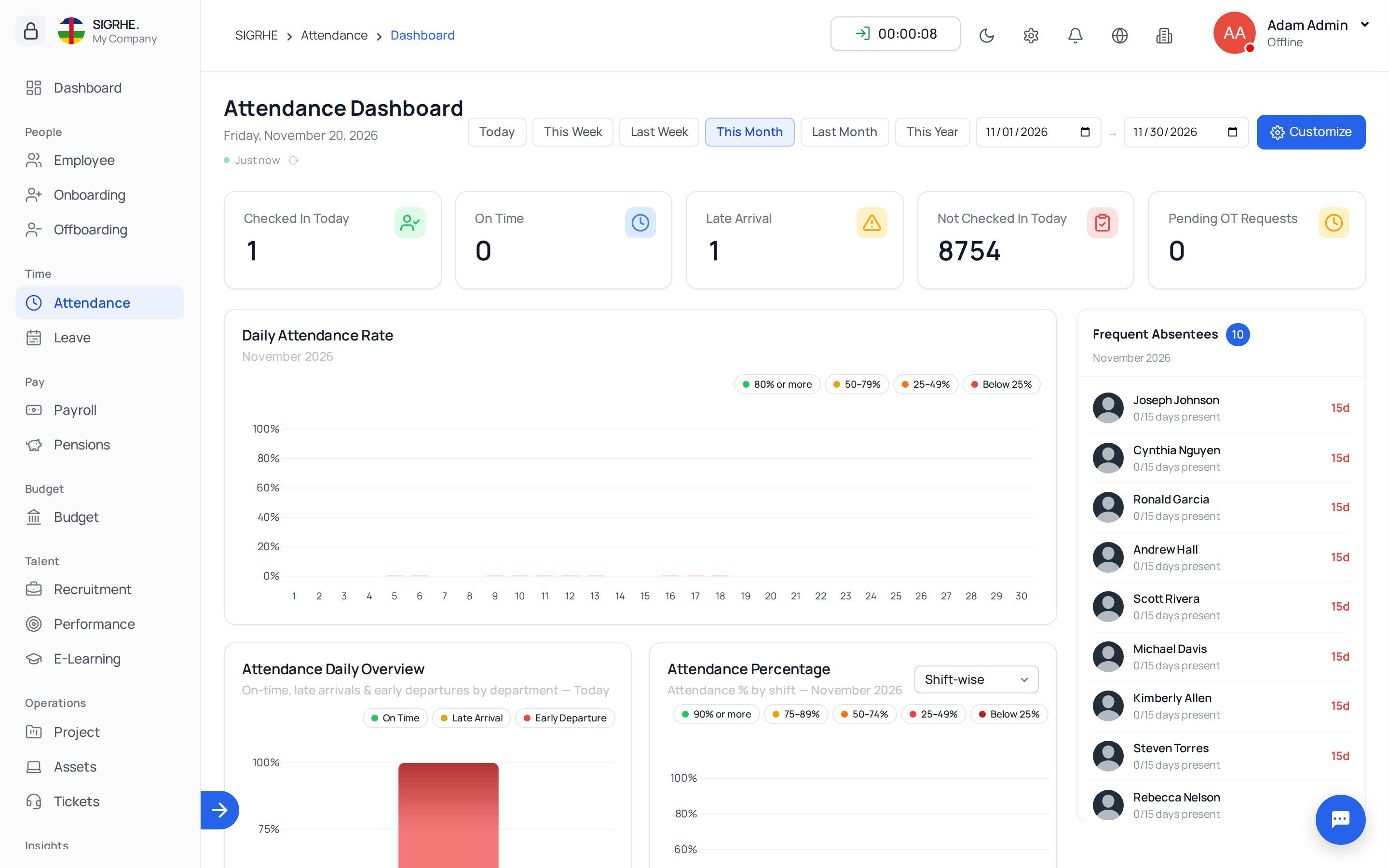
| Menu | Purpose |
|---|---|
| Dashboard | Real-time overview of today's attendance, staff on breaks, active overtime hours, and records pending validation. Click any tile to inspect the filtered records. |
| My Attendances | Self-service interface for individual employees to review their historical attendance entries. |
| Attendances | Administrative directory of all attendance entries: validate daily logs and approve overtime hours. |
| Attendance Requests | Workflow queue for reviewing employee correction requests and missing punch regularizations. |
| Check-in / Check-out Log | Granular raw timestamp log of every individual clock-in and clock-out event. |
| Late Arrival & Early Departure | Automated log of tardy check-ins and premature departures, including associated penalty assessments. |
| Monthly Summary | Comprehensive monthly reconciliation grid featuring conflict resolution and manual hour overrides. |
| Time Policies | Grace period rules and automated attendance validation parameters. |
Attendance entries originate from web-based Check-In / Check-Out buttons, synchronized biometric hardware, manual administrative creation, spreadsheet imports, or approved attendance correction requests.
3. Validating Attendance
Navigation: Attendance → Attendances
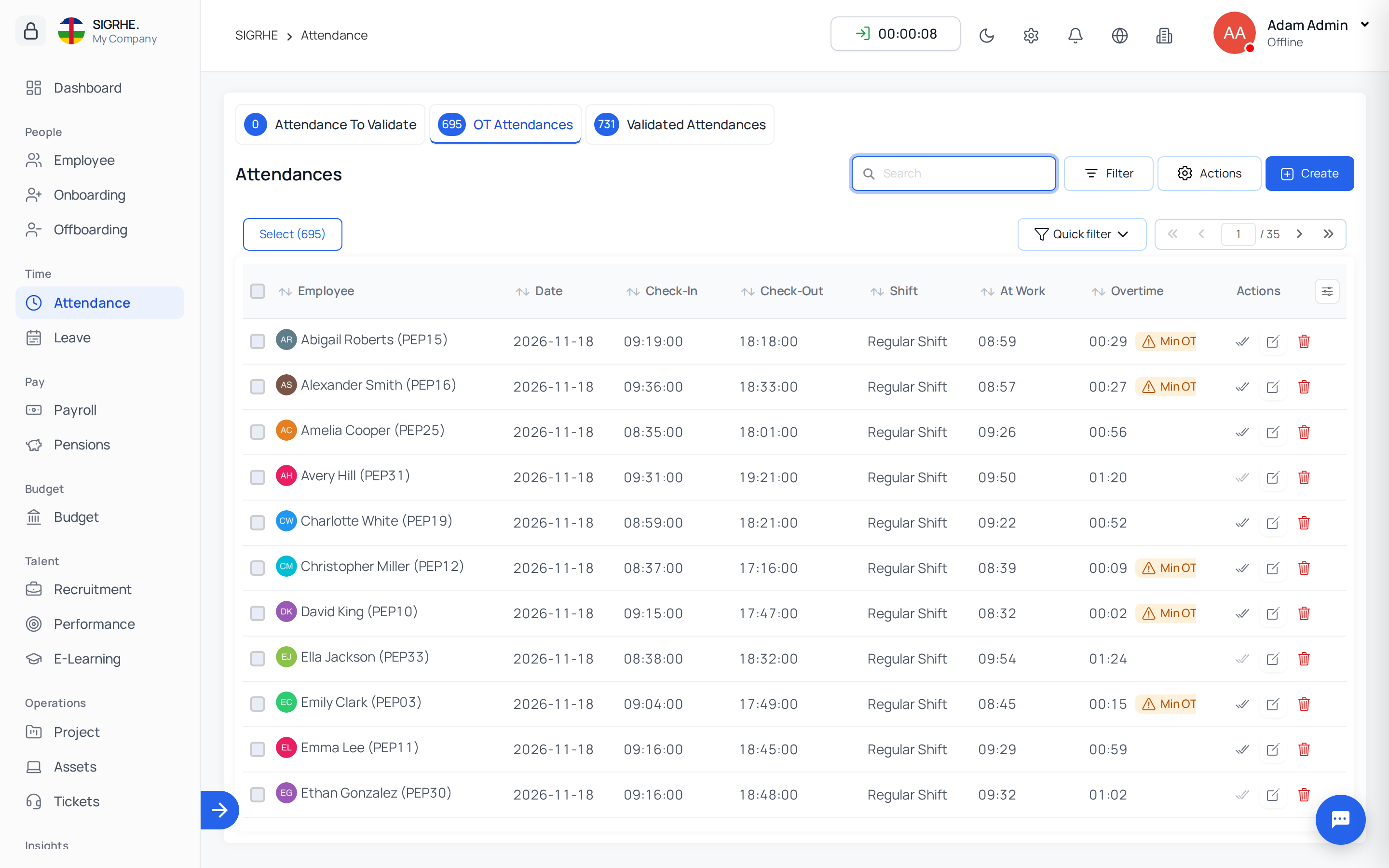
The Attendances view organizes records into three functional tabs:
- To Validate: Contains entries requiring administrative review (e.g., incomplete punch logs, hours falling outside automated parameters). Review individual records and click Validate, or multi-select entries to execute bulk validation.
- Overtime: Contains validated attendance records featuring worked hours that exceed shift minimums.
- Validated: Archives all confirmed, error-free attendance records ready for monthly reconciliation.
Automated Validation: Records meeting the criteria established in Time Policies validate automatically without manual administrative intervention.
4. Overtime Approval
Navigation: Attendance → Attendances → Overtime
Overtime hours count towards employee compensation and time accounts only after formal administrative approval.
- Review overtime entries individually or approve eligible records in bulk.
- When an Overtime Cut-off threshold is configured, hours recorded above the cut-off ceiling are automatically capped.
- Overtime accumulated below the configured Minimum overtime to approve threshold is discarded.
5. Adding, Importing & Exporting Attendance
Navigation: Attendance → Attendances
- + Create: Manually log attendance for a single employee by specifying date, shift, work type, clock-in time, and clock-out time.
- Batch Attendance: Create identical attendance logs for multiple employees simultaneously under a shared batch identifier.
- Import: Upload daily attendance logs or regularization spreadsheets. The system validates entries and generates an error report for invalid rows so they can be corrected and re-uploaded.
- Export: Download filtered attendance logs into customizable spreadsheet reports.
6. Attendance Requests & Corrections
Navigation: Attendance → Attendance Requests
Employees can submit regularization requests when they forget to clock in or require time adjustments.
- Create Request: Submits attendance for a date with no existing record.
- Update Request: Proposes corrections to an existing attendance record, displaying proposed changes alongside current recorded values.
- Review Workflow: Open the request to inspect justification notes and attachments. Click Approve to update the official attendance record, or Reject with a mandatory explanation.
7. Check-in / Check-out Raw Log
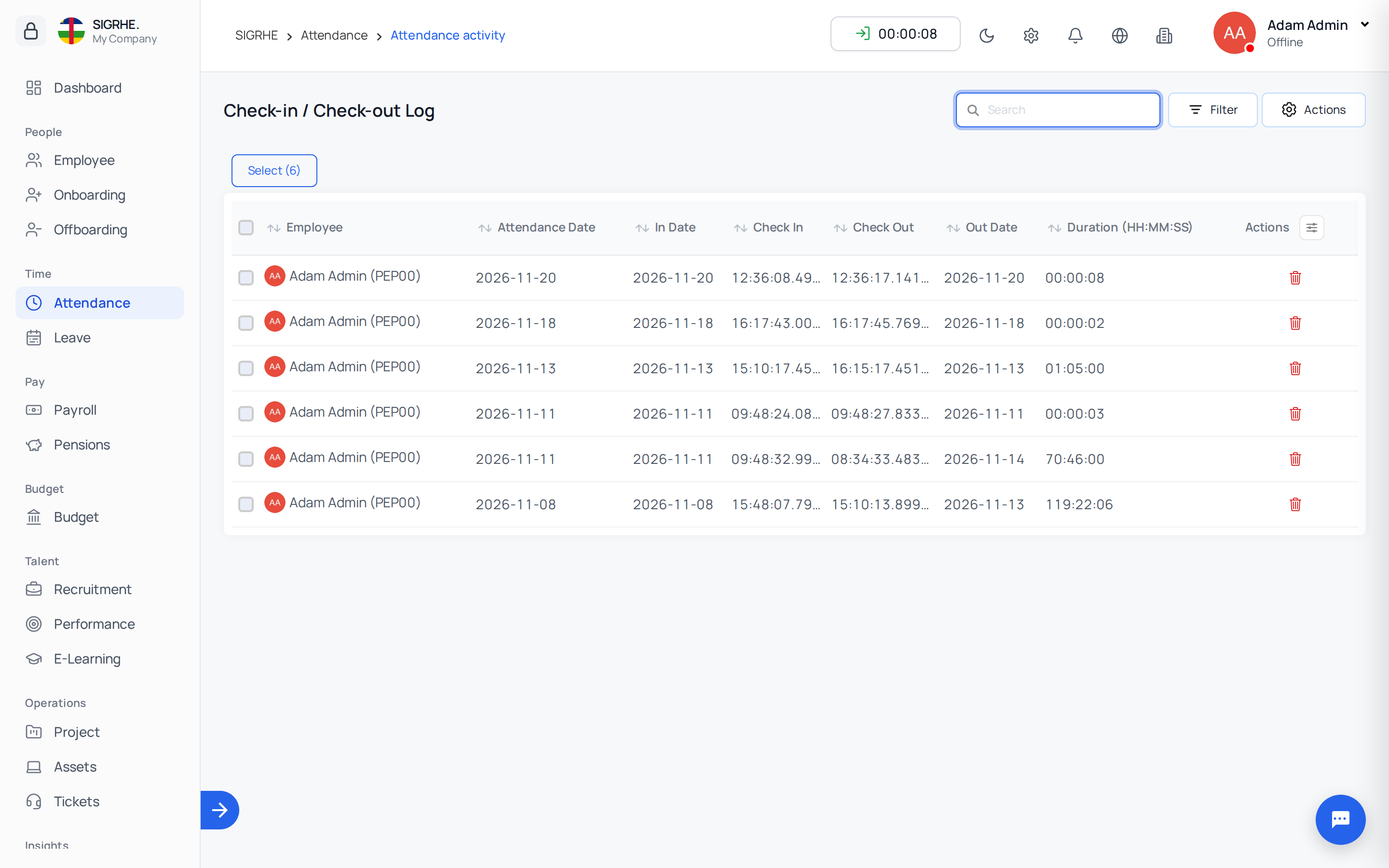
Navigation: Attendance → Check-in / Check-out Log
Provides a raw audit trail of every check-in, check-out, and break punch event. Useful for investigating disputed records or resolving discrepancies caused by network latency or biometric sync delays.
8. Late Arrivals & Early Departures
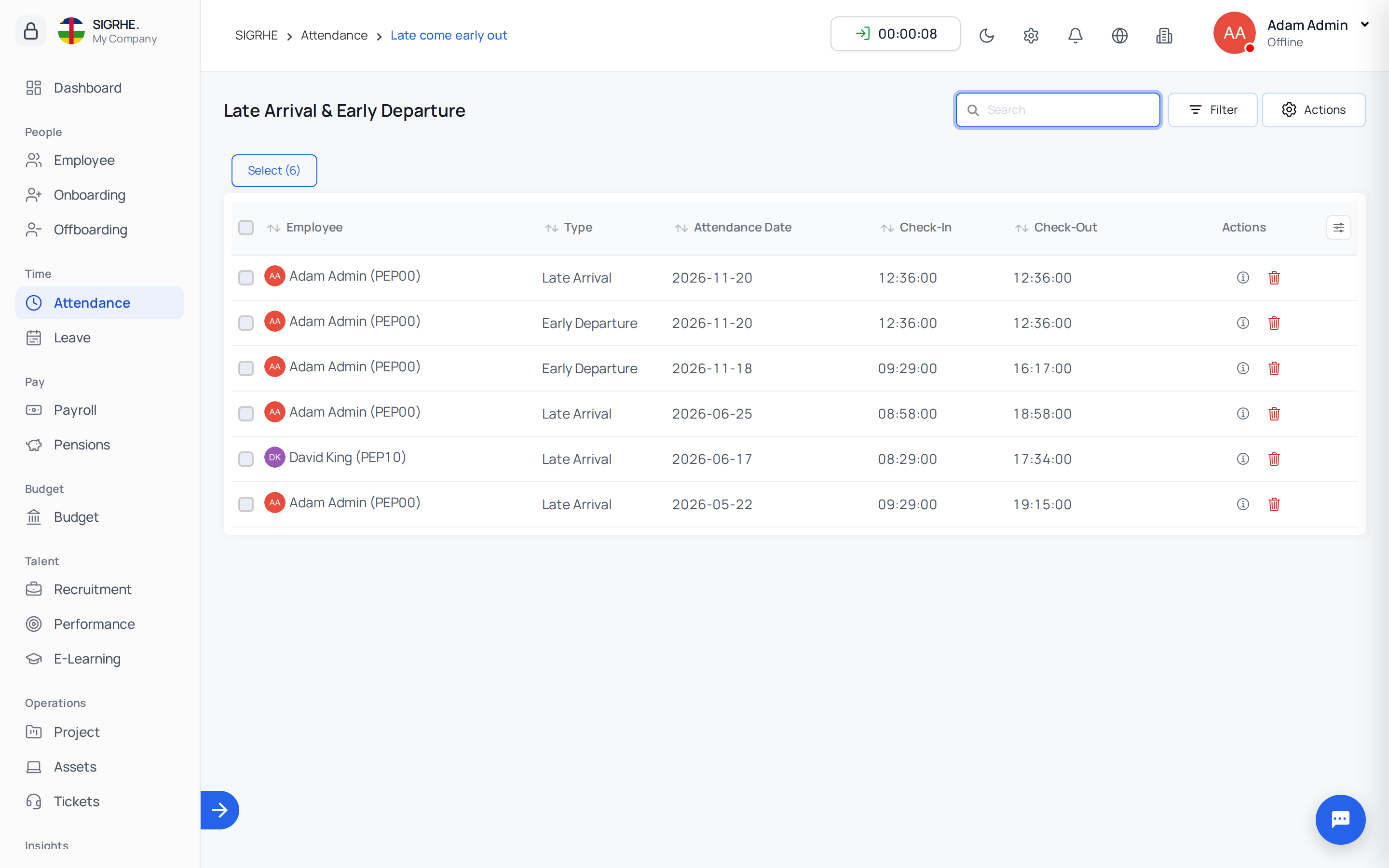
Navigation: Attendance → Late Arrival & Early Departure
When tracking is active, the system automatically registers records that commence after the scheduled shift start time or terminate prior to the scheduled shift end time.
- Punctuality tolerances are controlled by configured Grace Times.
- Filter entries by employee, date range, department, or infraction type.
- Penalties: Administrators can levy administrative penalties directly against late or early departure entries (e.g., leave balance deductions or salary deductions).
9. Time Policies
Navigation: Attendance → Time Policies
Grace Times
Defines allowable arrival and departure flexibility before an entry is flagged as late or early:
| Field | Description |
|---|---|
| Allowed Time | Duration threshold specified in HH:MM:SS (e.g., 00:10:00 for 10 minutes). |
| Allowed Clock-In / Clock-Out | Specifies whether tolerance applies to check-in, check-out, or both. |
| Default | Sets the default grace policy applied to shifts lacking a dedicated rule. |
| Shifts | Links the grace rule to designated shift schedules. |
Validation Conditions
Configures rules that govern automated attendance confirmation and overtime qualification:
| Field | Description |
|---|---|
| Minimum Hours to Auto Validate | Records meeting or exceeding this threshold validate automatically. |
| Worked Hours Auto Approve Till | The upper worked-hour boundary for automated validation. |
| Minimum Overtime to Approve | Excess hours below this duration are not considered eligible overtime. |
| Overtime Cut-off | The maximum overtime duration allowed per calendar day. |
| Auto Approve OT | Automatically approves eligible overtime hours without manual review. |
| Shifts | Restricts rules to specific shifts (leave blank to apply globally). |
10. Attendance Rules & System Settings
Navigation: Settings › Attendance › Attendance Rules
| Setting | Effect |
|---|---|
| Enable Check In / Check Out | Activates the interactive clock-in/out button across user portals. |
| At-Work Tracker | Renders a live real-time elapsed workday counter inside the clock-in button. |
| Track Late Arrival & Early Departure | Automatically records tardiness and early departures against shift schedules. |
| IP Login Restriction | Restricts check-in capabilities strictly to whitelisted corporate IP addresses. |
| Biometric Attendance | Enables synchronization with on-premises biometric hardware (requires Biometric module). |
| Face Detection | Requires facial recognition verification upon clock-in (requires Face Detection module). |
| Geofencing | Restricts mobile attendance check-ins to authorized geographic coordinate radiuses (requires Geofencing module). |
Note on Policies: Grace times, minimum working hours, and validation criteria are configured under
Attendance › Time Policies.
11. Monthly Summary & Conflict Resolution
Navigation: Attendance → Monthly Summary
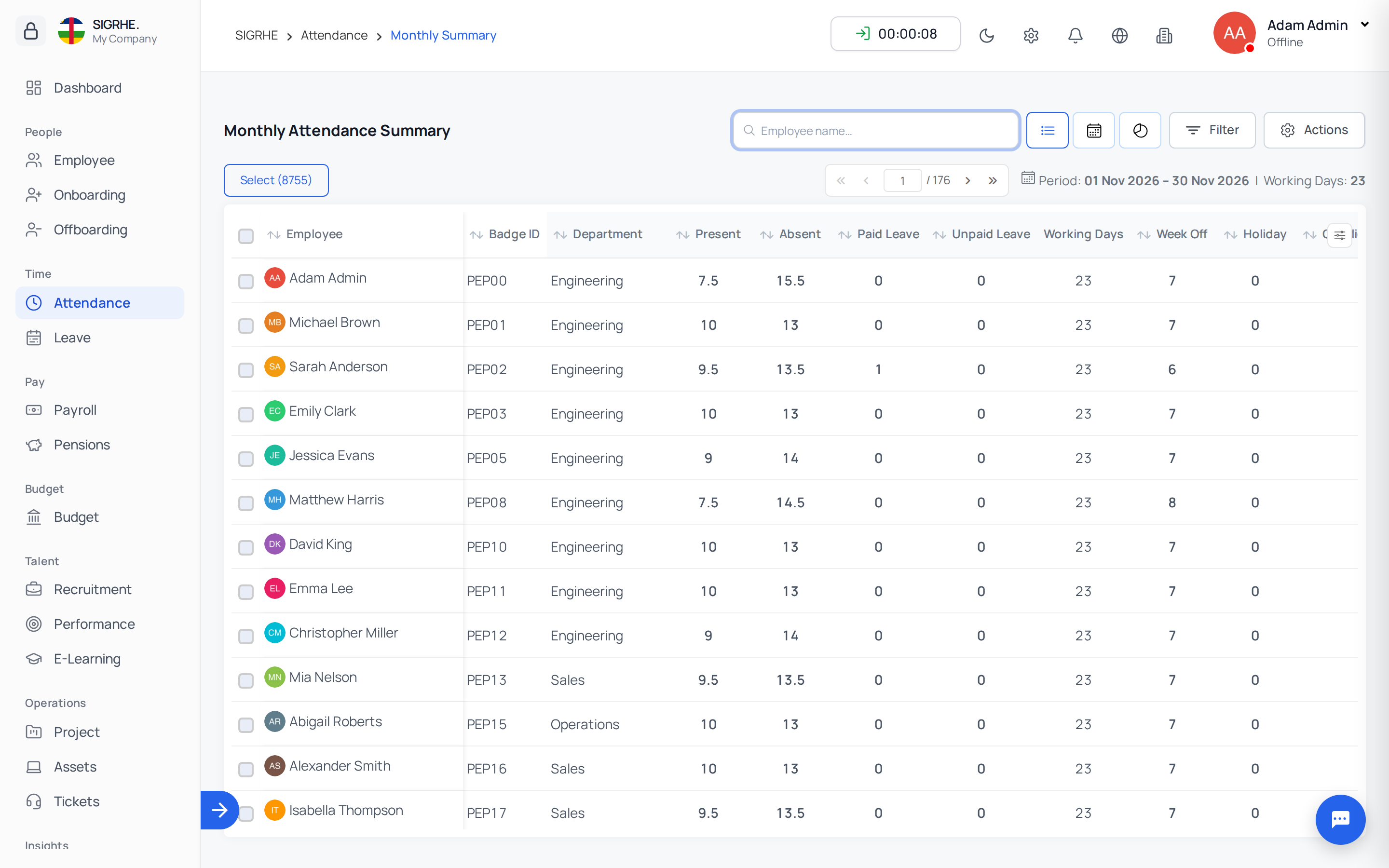
The Monthly Summary provides a monthly reconciliation matrix detailing total days present, half-days, absences, approved leaves, public holidays, weekly off days, total hours worked, and overtime accumulated. Toggle between the summary overview and the Daily View grid.
Resolving Attendance Conflicts
A conflict occurs when an attendance record overlaps with an approved leave request, holiday, or off day, or when records are incomplete. Conflicting cells are highlighted on the monthly grid.
- Click the highlighted entry or launch the Bulk Resolve drawer.
- Select the final reconciled status:
- Full Present
- Half Day
- Half Absent
- Partial Hours
- Absent
- Paid Leave
- Unpaid Leave
- Holiday
- Week Off
Overriding Hours & Regularization
- Override Hours: Allows administrators to manually adjust the employee's total accumulated hours for the pay cycle. Overridden hours are protected against automated recalculation.
- Regularise: Confirm individual day statuses from the calendar popover. All conflicts should be fully resolved prior to processing payroll disbursements.