Appearance
Leave Management
The Leave Management module in NKL-HR governs employee time-off requests, balances, multi-tier approval chains, automated balance resets, and holiday calendar integration.
1. Prerequisites & Setup Order
Configure leave policies in the following sequence:
- Public Holidays & Weekly Off Days: Configure weekly rest days under
Settings › Organization › Weekly Off Daysand statutory holidays underLeave › Public Holidaysso that leave durations are computed accurately. - Leave Types: Define leave categories and entitlements in
Leave → Configuration → Leave Types. - Approval Rules: Establish multi-tier sign-off workflows under
Leave → Configuration → Multiple Approval Rules. - Balances: Allocate leave quotas to employees via
Leave → Leave Balances.
2. Menu Overview
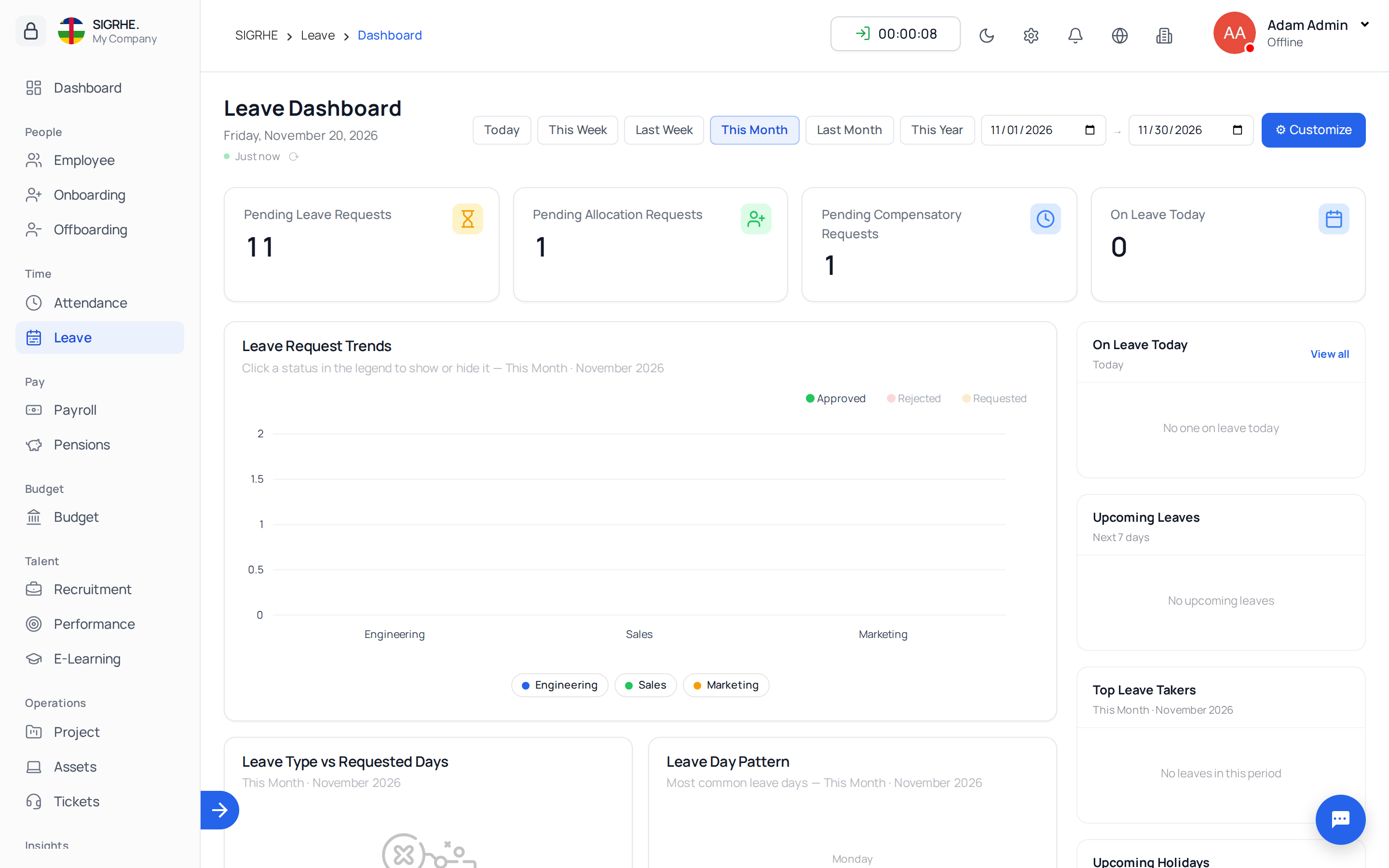
| Menu | Purpose |
|---|---|
| Dashboard | Visual analytics showing currently absent personnel, pending requests, and leave trends by department. |
| My Leave Requests | Self-service view for employees to inspect personal quotas, request leave, and track approval states. |
| Leave Requests | Administrative queue to review, approve, or reject leave requests across the organization. |
| Leave Allocation Request | Administrative review for employee submissions requesting additional leave quota days. |
| Compensatory Leave Requests | Requests to earn compensatory time-off for extra hours worked during holidays or weekly off days. |
| Leave Balances | Central ledger displaying each employee's balance per leave type, with manual adjustment options. |
| Restricted Leave Periods | Blackout date windows during which employee leave requests are blocked. |
| Public Holidays | Official non-working statutory holiday calendar configured under Leave › Public Holidays. |
| Configuration | Setup interfaces for Leave Types and Multiple Approval Rules. |
3. Creating & Configuring Leave Types
Navigation: Leave → Configuration → Leave Types → + Create
- Basic Configuration: Specify the leave type name, icon, and basic parameters:
| Field | Description |
|---|---|
| Name & Icon | Descriptive title (e.g., Annual Leave, Sick Leave, Maternity Leave) and visual icon. |
| Payment Type | Paid, Unpaid, or Custom. When set to Custom, define the Payment Percentage (0–100%, e.g., 50% for half-pay leaves). |
| Limit Leave Days & Total Days | Enforces a maximum balance quota (e.g., 20 days). When limited, requests exceeding the balance are blocked. |
| Encashable | Permits unused leave balances to be cashed out during financial settlements. |
| Require Approval | Selecting No approves employee requests automatically upon submission. |
| Require Attachment | Mandates uploading supporting documentation (e.g., medical certificates) when submitting requests. |
| Exclude Company Weekoff & Exclude Holidays | Automatically excludes designated weekly rest days or statutory holidays from the counted leave duration. |
- Eligibility Conditions: Restrict the leave type to qualifying workforce segments:
- Gender, Marital Status, Nationality: (e.g., Maternity leave restricted to Female personnel).
- Department, Employment Type, Grade: Target specific tiers or permanent staff.
- Service Duration: Require a minimum tenure before the leave type becomes available.
- Once Per Employment: Restricts the leave entitlement to a single lifetime grant per employee.
4. Managing Leave Balances & Ledgers
Navigation: Leave → Leave Balances
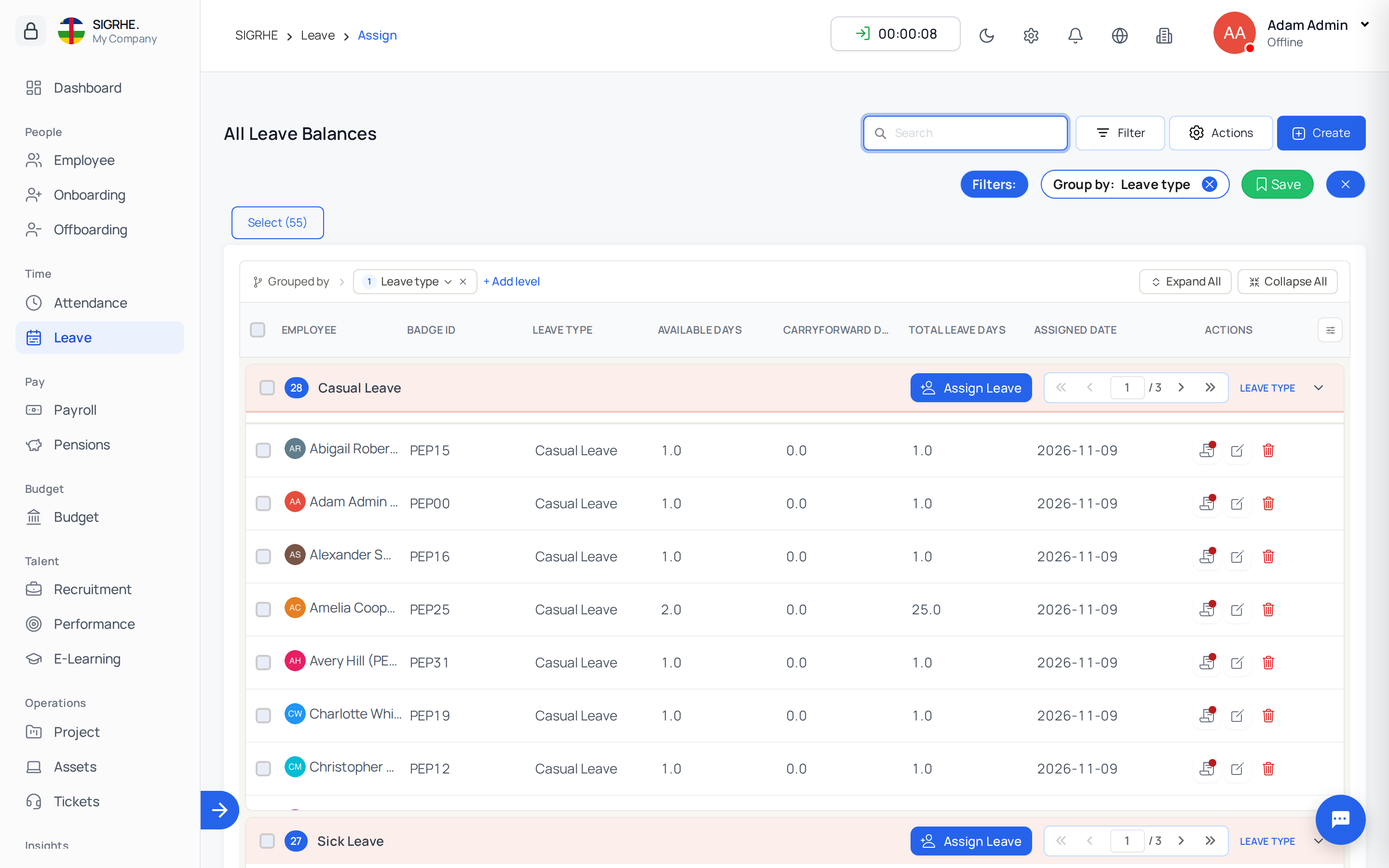
A balance represents a designated leave type quota assigned to an individual employee.
- Assigning Balances: Click + Assign, choose the leave type, select target employees, and confirm. Employees who do not satisfy the eligibility criteria are automatically excluded.
- Editing Balances: Administrators can manually adjust available or carry-forward days.
- Balance Ledger: Open any employee balance record to inspect its detailed audit ledger, tracking every initial assignment, recurring reset, manual change, expiry, and deducted leave day with a running balance.
| Ledger Attribute | Description |
|---|---|
| Available Days | Active leave quota available for the current cycle. |
| Carryforward Days | Unused days brought forward from preceding cycles. |
| Total Leave Days | Combined total available days (Available + Carryforward). |
| Assigned Date | Timestamp when the balance was granted. |
| Leave Reset Date | Scheduled calendar date for the next automated quota reset. |
| CarryForward Expired Date | Expiration timestamp for carry-forward days, if configured. |
5. Resets & Carry-Forward Policies
Navigation: Leave → Configuration → Leave Types → (Select Type)
Enable Reset to automatically refresh leave balances on a cyclical schedule. Upon reset, available days revert to the configured Total Days.
Reset Schedules
- Yearly: Specify reset month and day (or last day of month).
- Monthly: Specify day of month.
- Weekly: Specify weekday.
- Custom: Specify interval in calendar days.
Carry-Forward Methods
- No Carry Forward: Unused balance days at the end of the cycle lapse immediately.
- Carry Forward: Unused days roll over up to the Carryforward Max limit.
- Carry Forward with Expire: Carried-over days expire after a designated duration (Carryforward Expire In days, months, or years).
- First Expiry Date: All employees share a unified expiration date for rolled-over days.
- Employee Assignment Date: Expiration is calculated individually relative to each employee's original balance assignment date.
6. Submitting & Reviewing Leave Requests
Navigation: Leave → Leave Requests
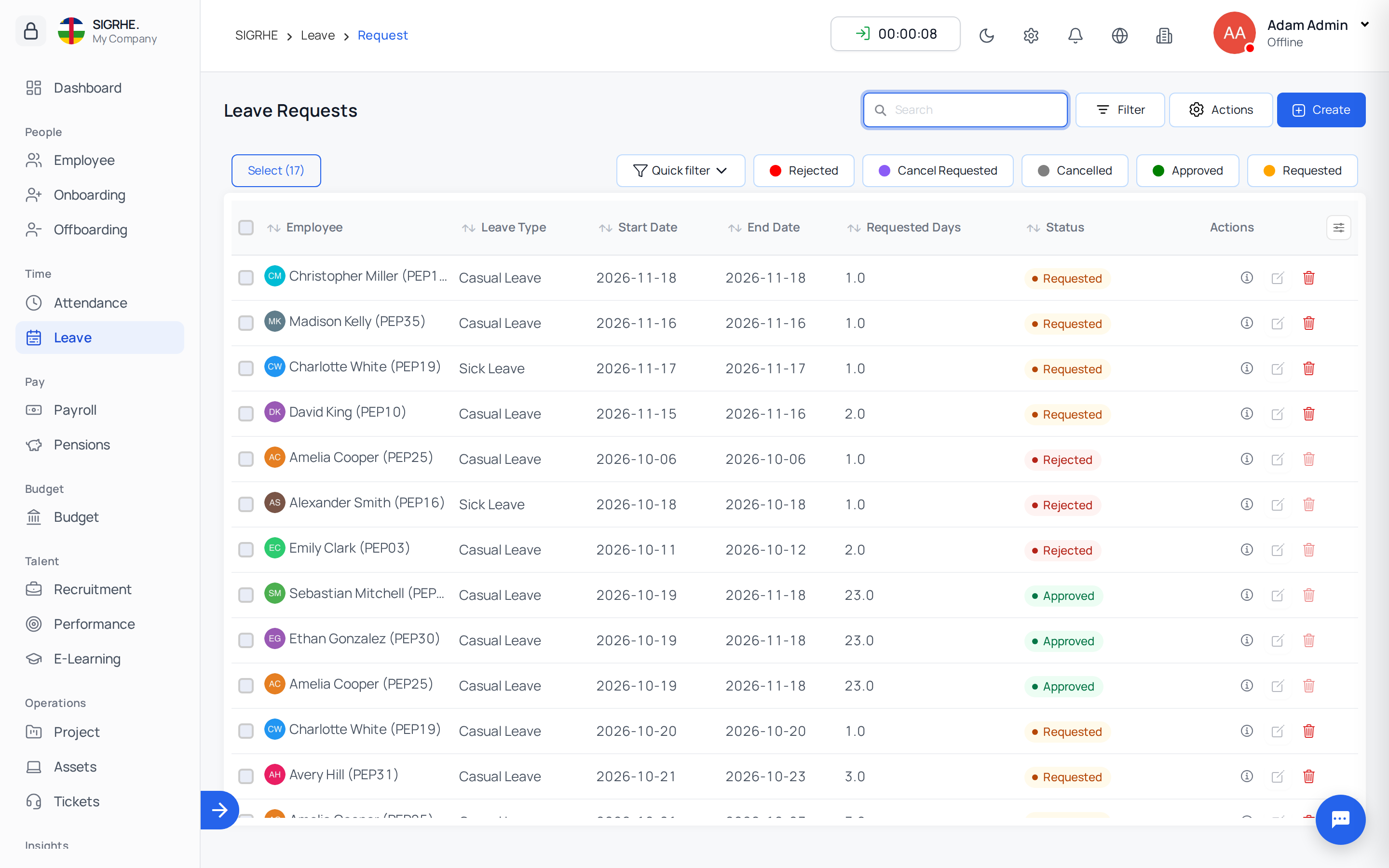
Employees initiate requests via My Leave Requests, while HR administrators can create requests on behalf of any employee.
- Select the employee (admin only) and the desired Leave Type.
- Specify date range. For partial days, configure Full Day, First Half, or Second Half.
- Attach required documentation if mandated by the leave type policy.
- The system validates balance limits, checks against restricted blackout dates, and detects team schedule clashes before saving.
| Status | Definition |
|---|---|
| Requested | Awaiting approval from designated managers or HR. |
| Approved | Approved; quota days deducted from balance and reflected on attendance logs. |
| Cancel Requested | Employee requested to revoke an approved leave; leave remains active until decision. |
| Cancelled | Leave officially withdrawn; deducted days are restored to the employee's balance ledger. |
| Rejected | Application denied; requires mandatory explanation notes. |
7. Approval Workflows & Multiple Approval Rules
Standard leave requests route to the employee's assigned Reporting Manager. For complex or departmental workflows, configure multi-tier approval chains.
Navigation: Leave → Configuration → Multiple Approval Rules
- Create ordered approval sequences (e.g., Team Lead → Department Head → HR Director) triggered by conditions such as request duration or specific departments.
- A request is fully approved only when the final designated approver signs off. A rejection at any intermediate stage rejects the application immediately.
8. Cancellations & Leave Allocation Requests
Cancellation Workflow
- Requests in Requested status can be cancelled directly by the applicant.
- Approved requests require a formal cancellation application (Cancel Requested), notifying the reporting manager and HR. Upon administrative approval, the days are restored to the employee's balance.
Leave Allocation Requests
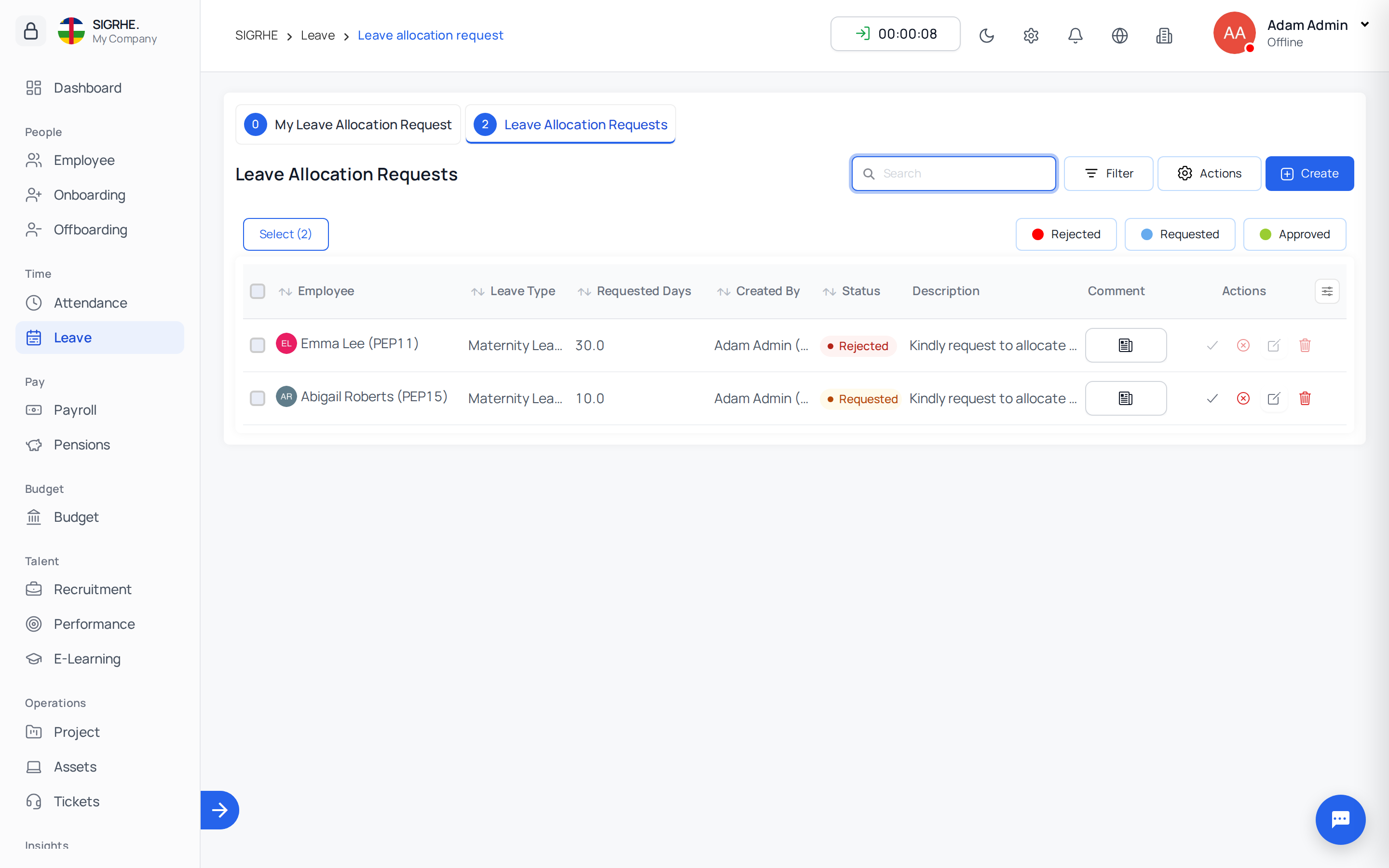
Navigation: Leave → Leave Allocation Request Employees can formally request supplementary leave days beyond their assigned quota. Approving an allocation request increments the employee's balance ledger accordingly.
Compensatory Leave
Navigation: Leave → Compensatory Leave Requests Allows employees to earn leave credit in exchange for working during public holidays or scheduled weekly off days (verified against the Attendance module). Once approved, compensatory days are credited to the employee's compensatory leave account.
9. Restricted Leave Periods
Navigation: Leave → Restricted Leave Periods
Enforce blackout windows (e.g., annual financial closing, peak operational cycles) during which leave applications are blocked.
- Specify blackout date boundaries.
- Restrict the blackout scope to the entire organization, specific departments, job positions, or designated leave types.
10. Public Holidays, Weekly Off Days & Rules
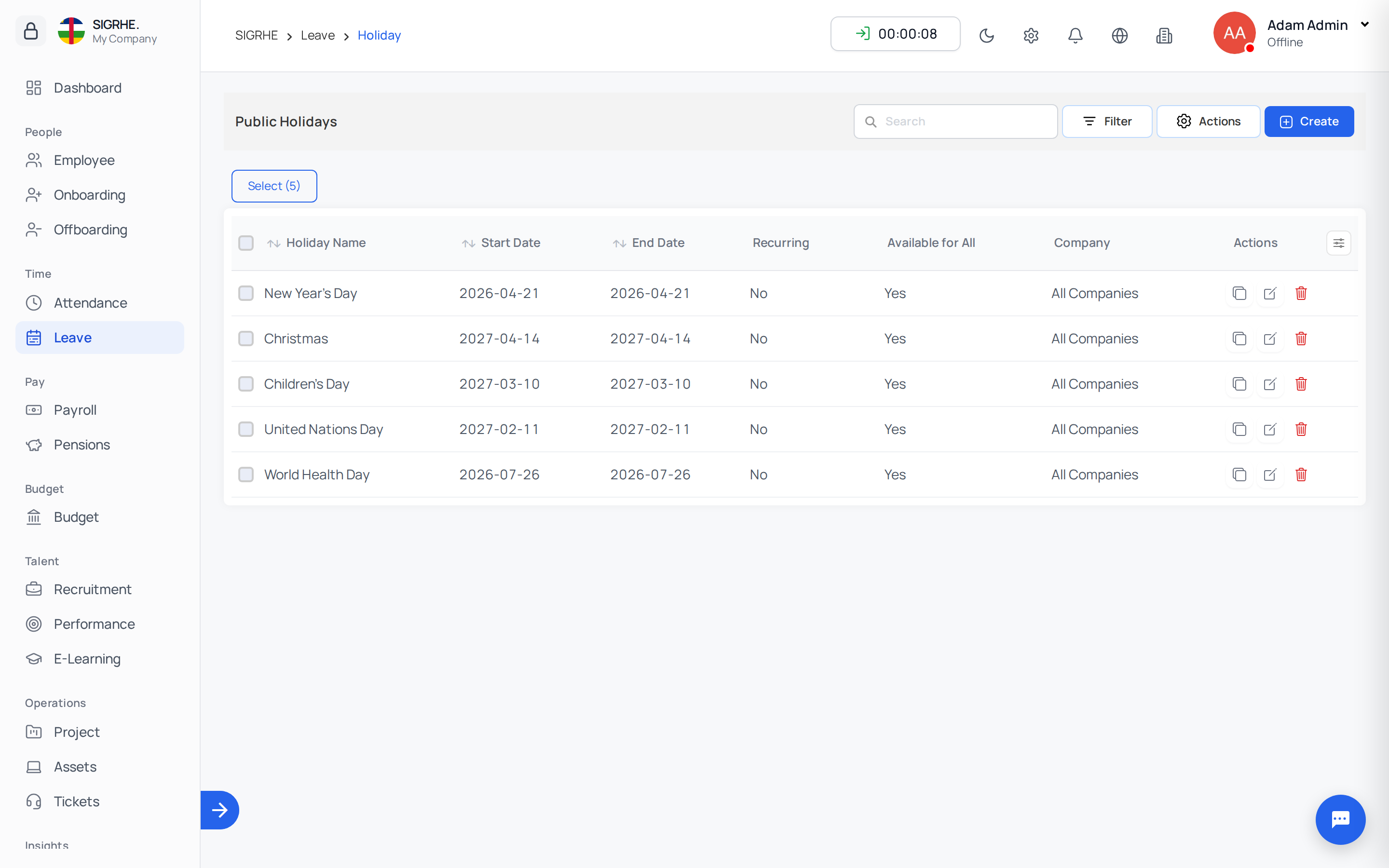
- Public Holidays: (
Leave › Public Holidays) Managed directly under the Leave module, not in Settings. Define statutory holidays with name, start and end dates, an optional yearly recurring flag, and target entity scoping. - Weekly Off Days: (
Settings › Organization › Weekly Off Days) Configure organizational rest days (e.g., Saturday and Sunday, or alternating 2nd/4th weekends of the month). - Leave Rules: (
Settings › Leave › Leave Rules) Toggle global behaviors:- Compensatory Leave: Activates compensatory leave workflows for extra days worked.
- Restrict Past Date Leave: Blocks standard employees from backdating leave requests, reserving retroactive entry privileges to administrators.
- Note: Leave types and multi-tier approval rules are configured under
Leave › Configuration.