Appearance
Document Requests
The Document Request feature allows HR administrators and reporting managers to solicit mandatory compliance, identification, and contractual documents directly from employees.
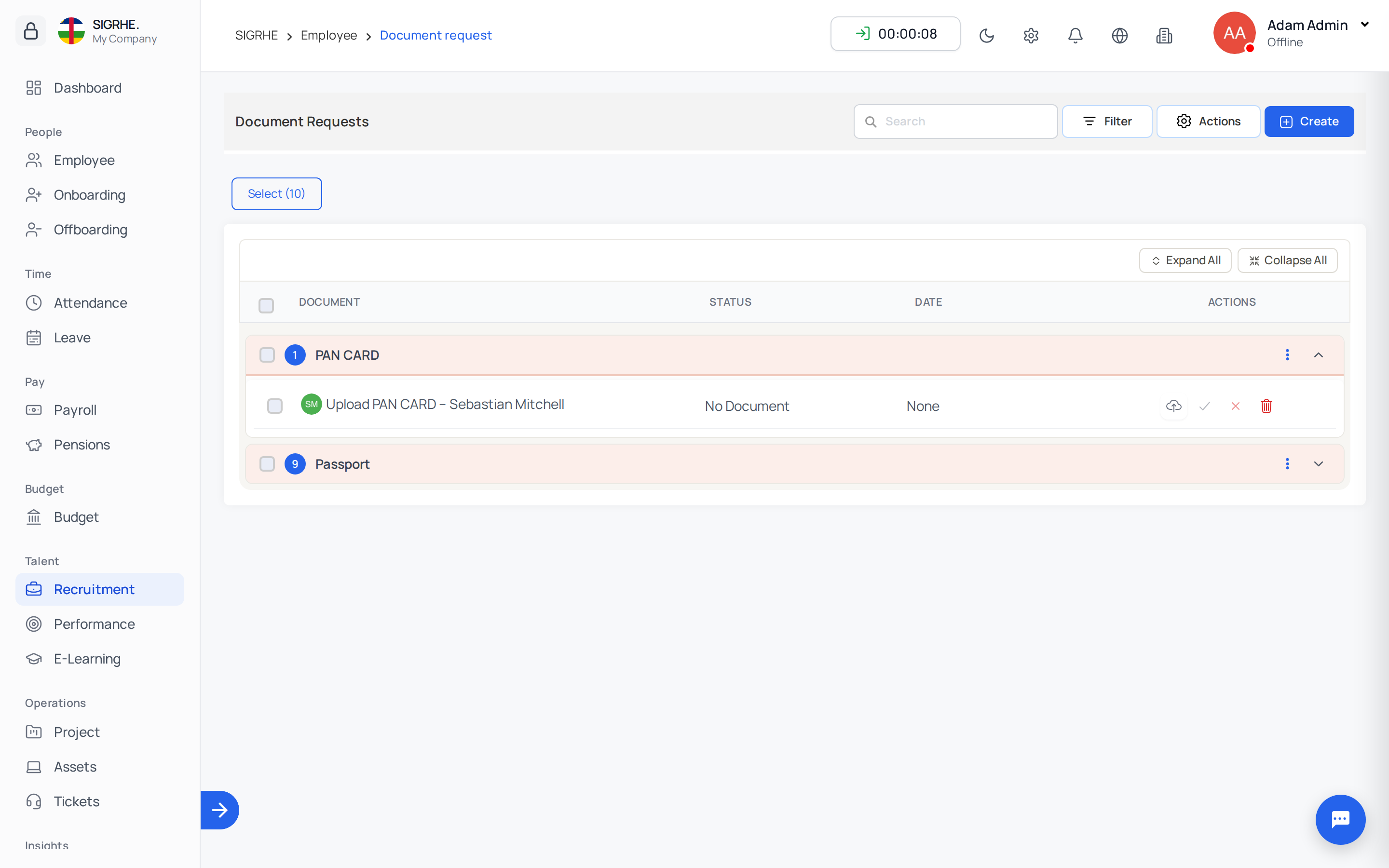
1. Overview & Permissions
Navigation: Employee → Requests → Documents (or Employee → Document Request)
Access is restricted to HR administrators and reporting managers. Employees receive notifications for document requests and can upload required files directly through their profile's Documents tab.
2. Creating a Document Request
Click + Create to initiate a new document request:
- Title: The name or category of the required document (e.g., Passport Copy, Driver's License, Degree Certificate, Work Permit).
- Employees: Target individual employees, or use the filter widget to request documents from entire departments or job positions.
- Format: Allowed file formats (e.g., PDF, TXT, DOCX, XLSX, JPG, PNG, JPEG).
- Max Size: Maximum permissible upload size per file (in megabytes).
- Description: Detailed instructions or compliance guidelines for the employee.
3. Reviewing & Approving Submissions
The document request dashboard tracks submission progress across the workforce:
- Submission Counter: Displays the count of submitted documents against total requested employees.
- Status Indicators:
- Pending Upload: Document has been requested but not yet uploaded by the employee.
- Waiting Approval: Document has been submitted by the employee and awaits review.
- Approved: Document has been reviewed and accepted into the employee's official record.
- Rejected: Document was rejected; employee is notified to re-upload with reasons provided.
- Document Expiries: When uploading documents that carry expiration dates (e.g., visas, certifications), employees or admins can specify the expiration date and configure advance notification days to ensure timely renewals.